HOW TO Setting up Automatic replies in Outlook (Out of Office)
1. Open Microsoft Outlook
2. Click on File

3. Click on Automatic Replies (Out of Office)

4. The Automatic Reply window will open, to enable automatic replies select Send automatic replies. If you have a time range you want your replies to be used, you can enable the Only send during this time range, and select the specific times.
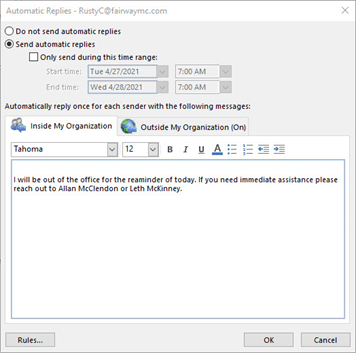
5. Once you are happy with your message, click OK to save and enable the Automatic Reply message.
NOTE: If you want automatic replies to go to senders outside of the Fairway organization, select the Outside My Organization tab and follow the same steps.
 Site Title